Bookingor
  • Features
  • Playground
  • Demo
  • Pricing
  • Login
  • Get Bookingor

Getting Started

4
  • Update Bookingor
  • Install Bookingor
  • Activate Bookingor
  • All Shortcodes

Integration

3
  • Google Calendar
  • Stripe Payment Integration
  • Woocommerce Integration

Settings

5
  • Integration Settings
  • Email Settings
  • Basic Settings
  • Payment Settings
  • Role Settings

Services

8
  • Assign Staff in Services
  • Assign Location in Service
  • Add Subcateogry in Service
  • Service Hours
  • Add Services
  • Edit Services
  • Delete Services
  • Add Extra

Category

6
  • Add Subcategory
  • Update Subcategory
  • Add Category
  • Subcategory
  • Edit Category
  • Delete Category

Staff

6
  • Add Staff
  • Edit Staff
  • Delete Staff
  • Staff Hours
  • Special Days
  • Holidays

Location

4
  • Add Location
  • Edit Location
  • Remove Location
  • Location Hours

Notifications

1
  • Email Notifications

Style Templates

1
  • Live Editor Templates
View Categories
  • Home
  • Documentation
  • Staff
  • Delete Staff
Delete Staff

< 1 min read

Instruction Manual: Deleting a Staff Member in Bookingor


Step 1: Log into WordPress Admin Panel

  1. Open your web browser and go to your WordPress site.
  2. Log in using your administrator credentials.

Step 2: Access the Bookingor Plugin

  1. Once logged in, navigate to the WordPress Dashboard.
  2. In the sidebar menu, locate and click on the Bookingor plugin.

Step 3: Go to Staff Management

  1. Within the Bookingor plugin, find and select the "Staff" section.

Step 4: Locate the Staff Member

  1. Browse through the list of staff members or use the search function to find the specific staff member you wish to delete.

Step 5: Go to the Action Column

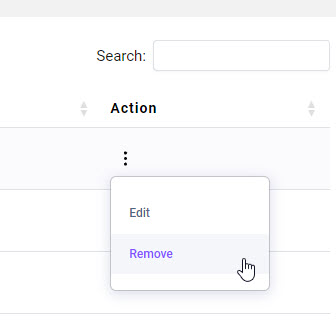
  1. In the Action column next to the staff memberโ€™s name, click on the three dots to open the dropdown menu.

Step 6: Select Delete Option

  1. From the dropdown menu, select the "Delete" option.
Additional Notes:

  • Permanent Action: Deleting a staff member is a permanent action. Ensure that you want to remove this staff member from the system, as this action cannot be undone.

This guide helps you to quickly delete a staff member from the Bookingor plugin, ensuring efficient staff management.

Updated on September 30, 2024

What are your Feelings

  • Happy
  • Normal
  • Sad

Share This Article :

  • Facebook
  • X
  • LinkedIn
  • Pinterest
Edit StaffStaff Hours

Your Valuable comments Cancel reply

Your email address will not be published. Required fields are marked *

*

*


Product
  • Demo
  • Features
  • Pricing
Best for
  • Salon Industry
  • Barber Industry
Resources
  • Documentation
  • Changelog
  • Contact Support
  • Blog
Company
  • About
  • Privacy Policy
  • Terms and Conditions
  • Refund Policy
  • Bookingor Affiliate Program
Bookingor
Bookingor is Wordpress Booking plugin and best Booking Appointment Scheduling plugin with Reservation. Fully customizable, allowing you to tailor it to your specific needs. Our plugin offers a range of features to meet your requirements. Developed under by The Creative Next.
ยฉ Copyright 2026 | Bookingor by The Creative Next | All Rights Reserved